Source Filmmaker

Source Filmmaker

222 ratings
My Model is nothing but Bones -- HELP IS HERE!!!
By Pte Jack
This guide will show you the EASIEST way to discover and fix models that are only displaying Bones in SFM.
3
2
2
2
11
   
Award
Favorite
Favorited
Unfavorite
Broken Model
Anyone who has worked with Custom models, be they imported from a GMod GMA file, downloaded from mods.tf, pulled from some other source or created from scratch, have run into this problem at one point. The model is invisible and shows bones only when bones are selected in in the Motion or Graph Editors.

The usual cause for this is that the model is either in the wrong folders, is not named properly or both.

There is an easy way to find out exactly what is wrong with the model and this can be done usng SFM itself.

Setting up a SFM Layout for Trouble Shooting
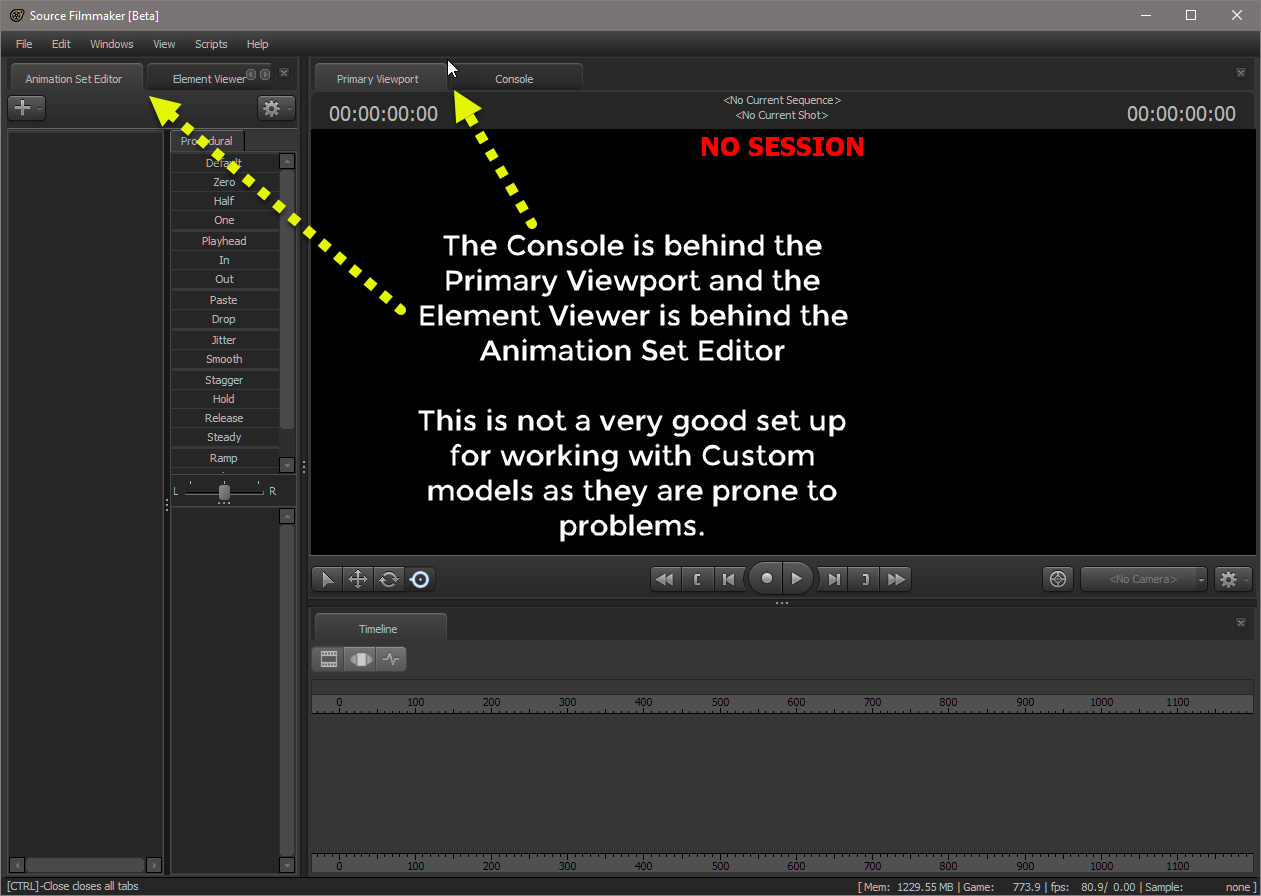
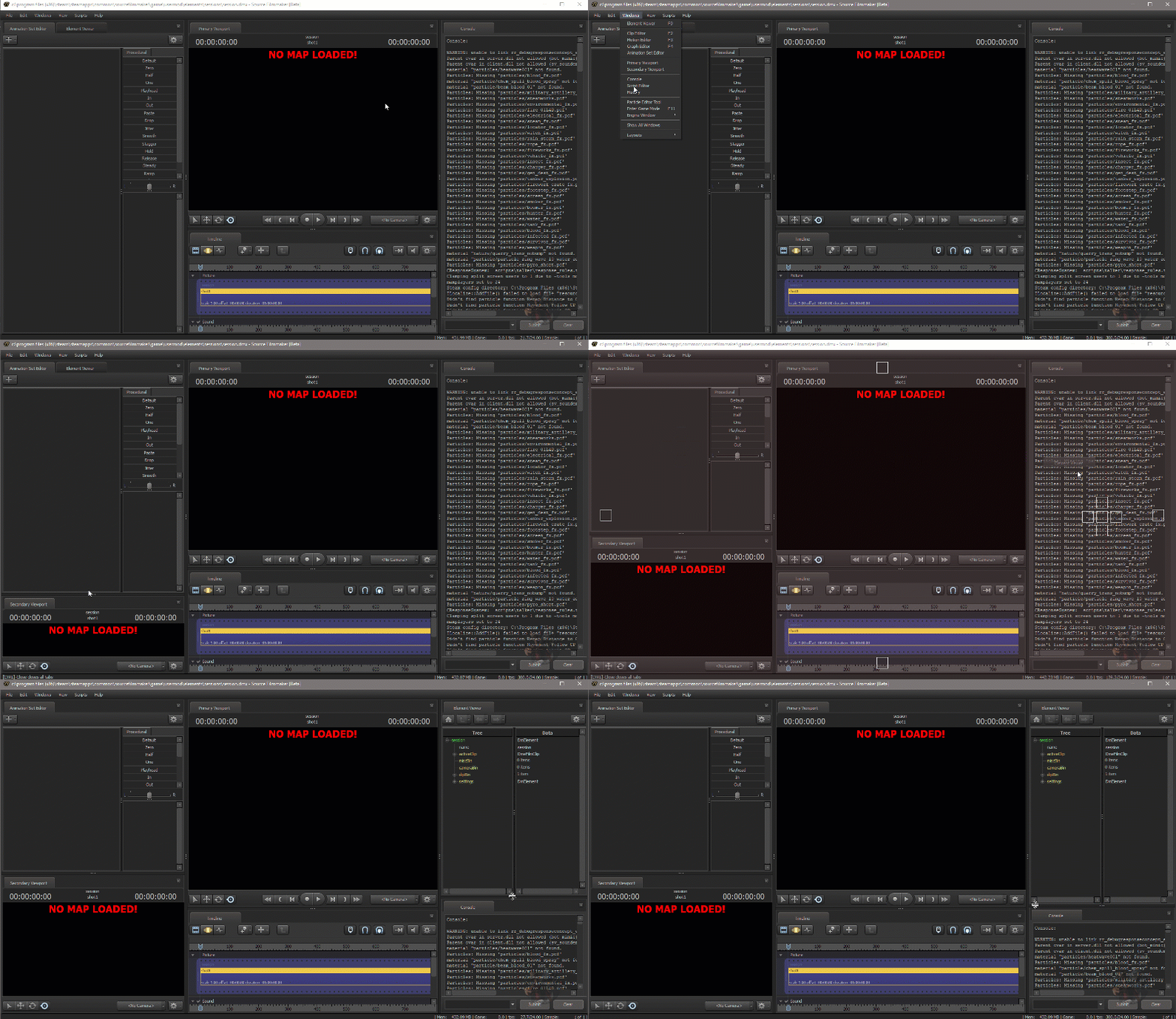
This is the Default Layout setting for SFM. Most new to the program don't know that the screens are configurable and that in it's default state is a real pain to work with. So, I'll show you how you can make life a little easier on yourself by setting up a new workspace.


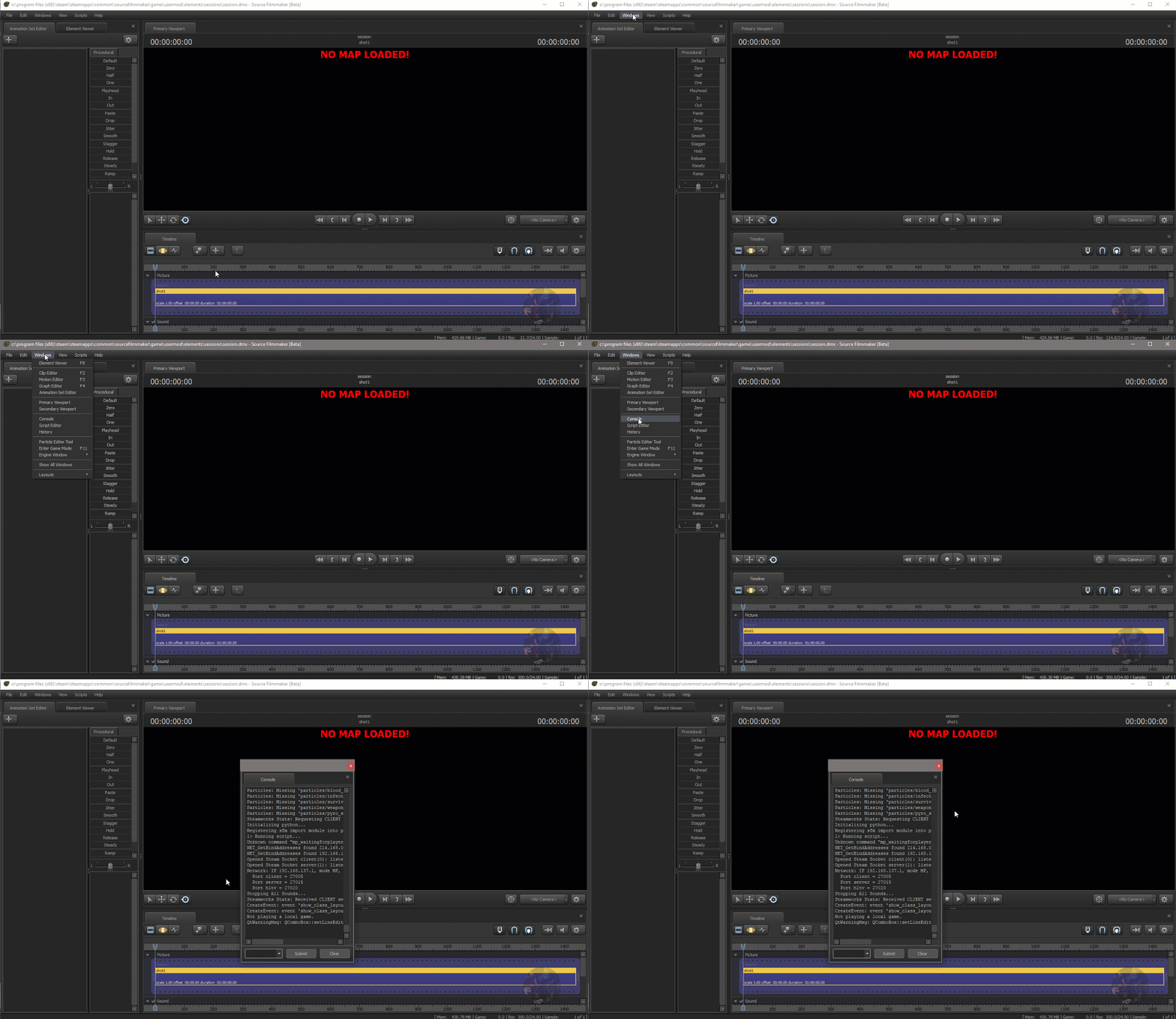
First, If you cannot see a tab that says Console, you need to make it visible...

The Console window is vital for troubleshooting..

Click Windows, then Console to open it.

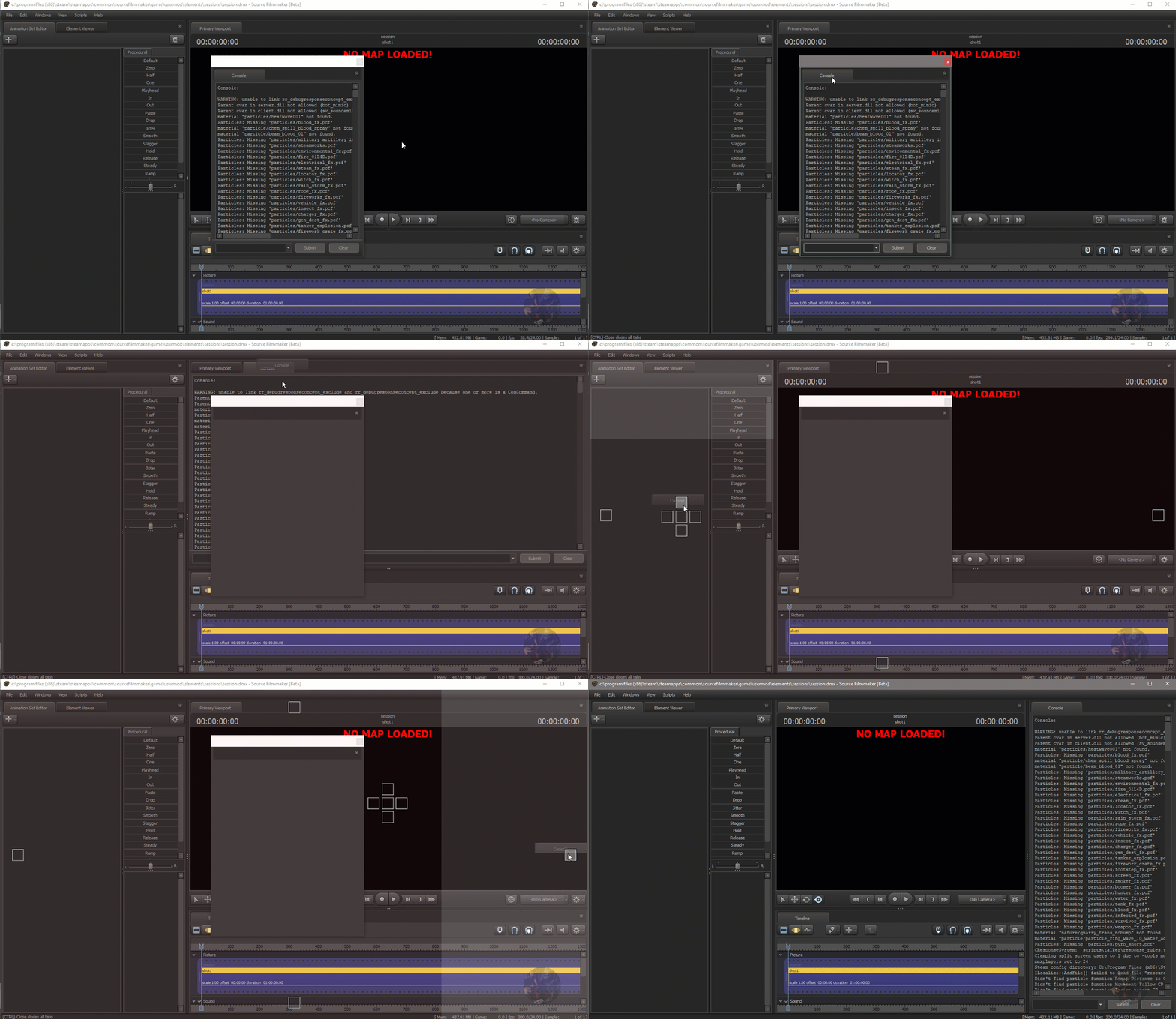
Now that you can see the Console Tab, either behind the Primary View Port or as a stand alone window, we can drag the Tab and place it where ever there is a white square while dragging it. ( I prefer Mine to be on the right and visible all the time.)


You could stop here , but I will show you how I like to have my SFM environment set up.


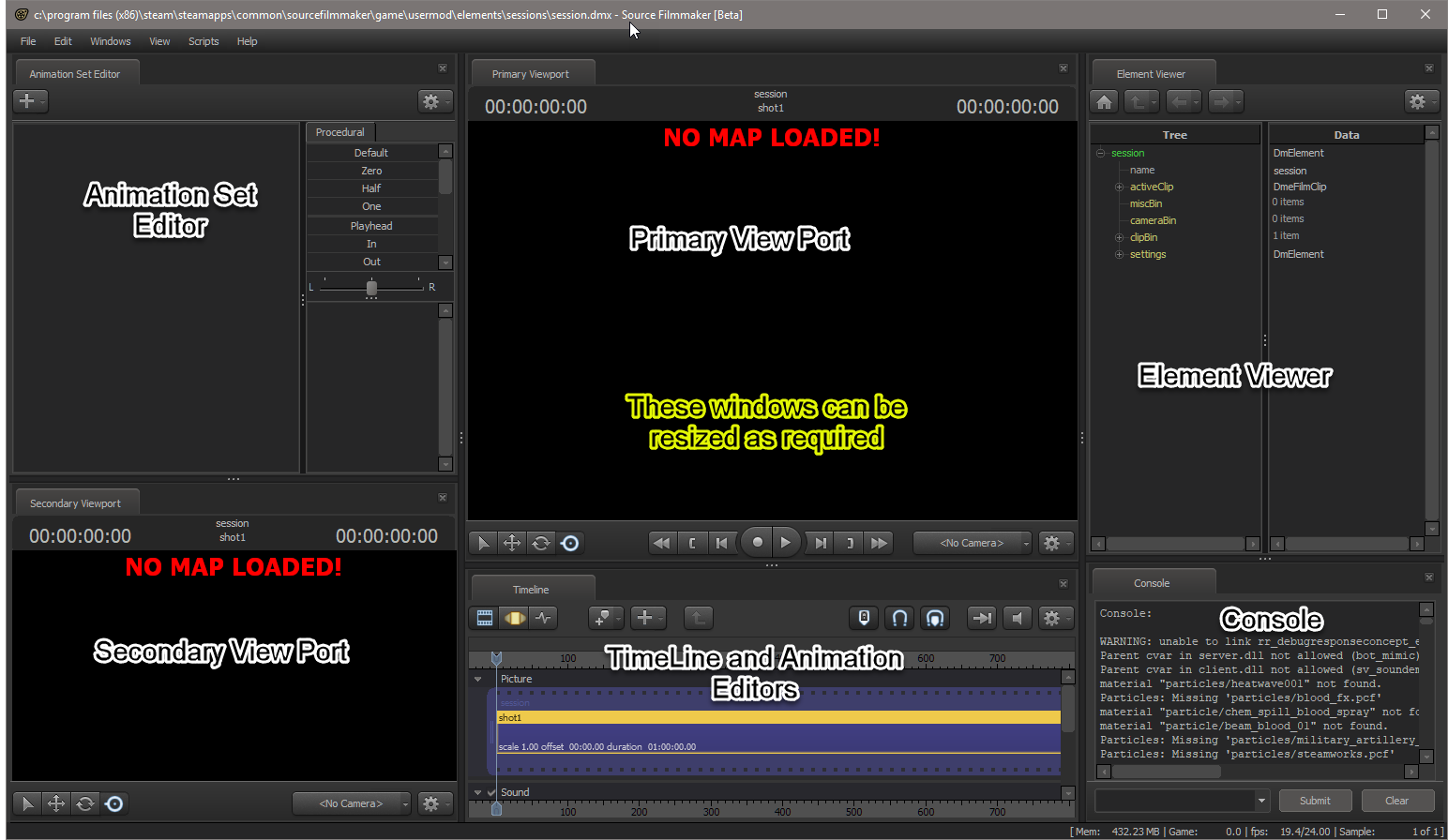
So this particular Layout gives me all the crutial screens I need to work with in a resizable enironment. Just remember to go into the Windows - Layout menu options and save your layout as one of the available User Layouts so you don't have to reset it everytime you start SFM.

Finding the Cause of the Problem
If you have ALREADY spawned the model into SFM, you're going to have to Close SFM before going further. Save your session, and quit SFM.
The reason for the restart is, once a model is loaded into SFM and the error reported, the model and the error is cached into the SFM Cache file and will not be reported again unless SFM is restarted and the Model Cache is emptied. All you'll get as an error is, "Failed to Load Model" if you try to load it again without the restart.

Now,
1) Restart SFM
2) Create a Session, but DON'T load a map
(if you load a map, it will clutter the Console window with errors and other data and may make finding the cause of the problem hard to find. We want to keep the Console as clean as possible.)

Note: Some ppl like to Clear the Console before moving on to the next step to get rid of any clutter that is there from the session start. You can do this by typing CLEAR in the Console command line.

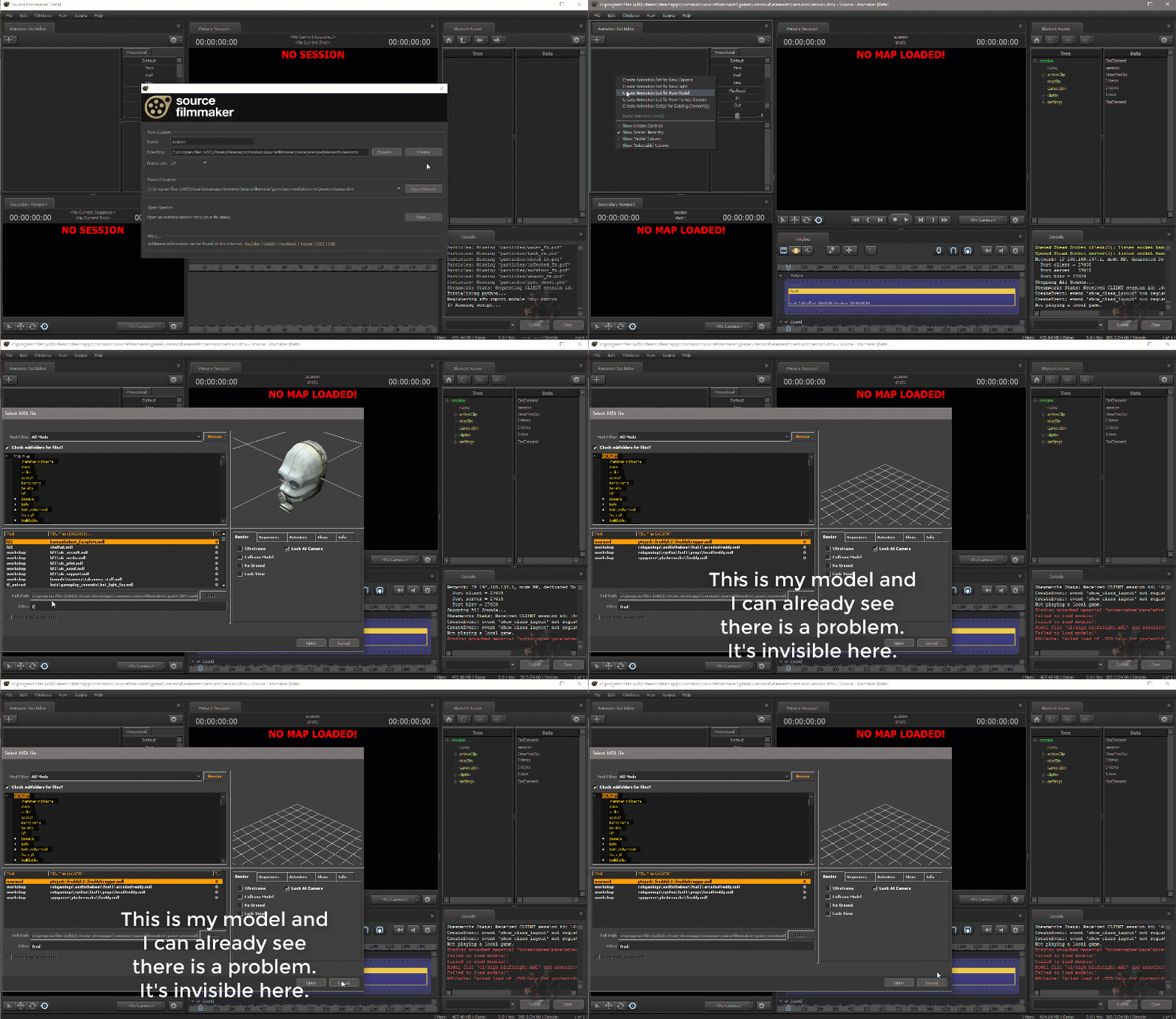
3) Right Click the Animation Set Editor
4) Select Create Animation Set For New Model
5) When the Model Browser opens, start typing the name of the model into the Search Filter


6) If the model isn't already selected, select it in the browser but don't spawn it.
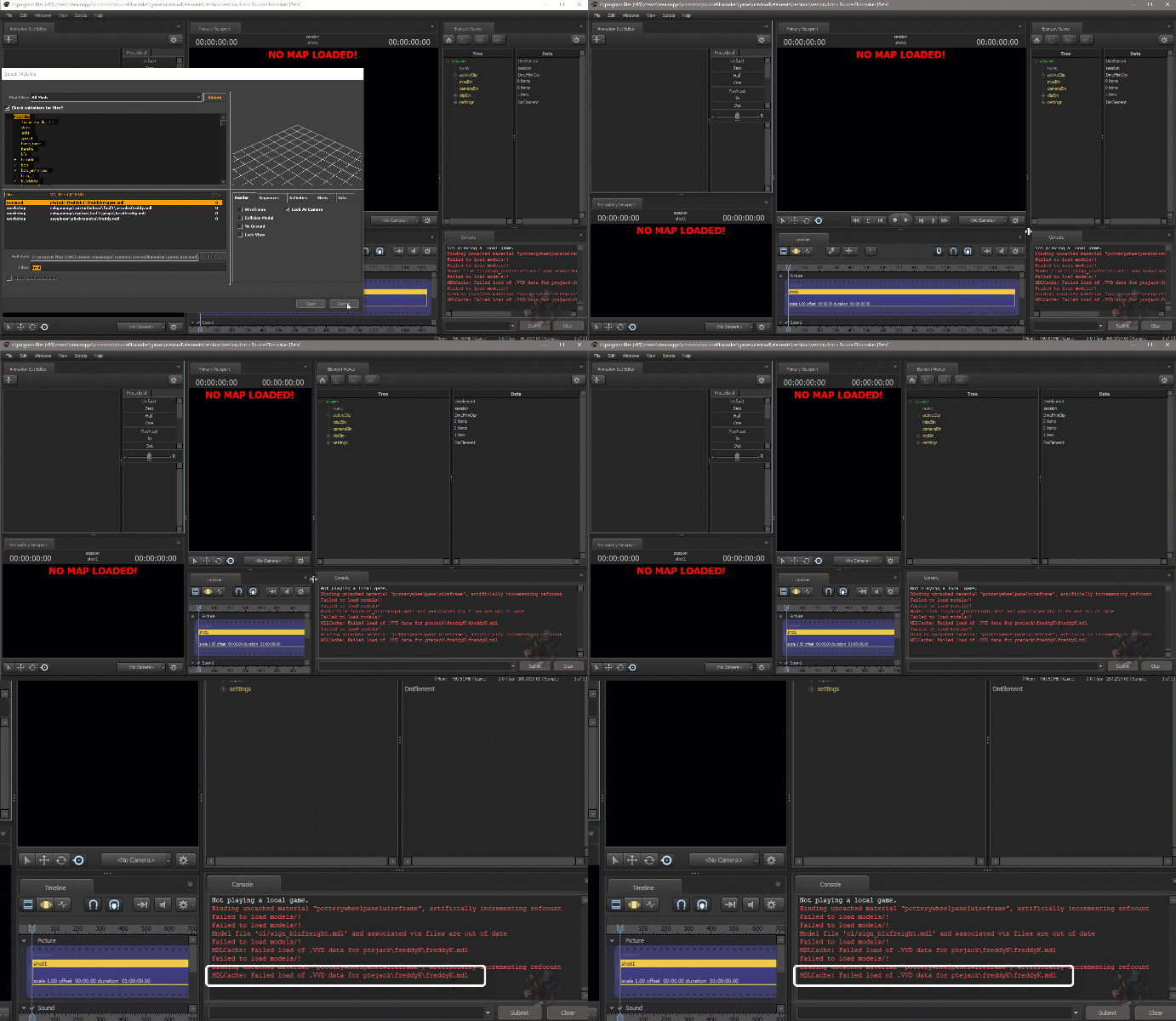
7) Click Cancel in the browser and look immediately at the Console Window for Errors, they should be red. If the window is too small, resize it.
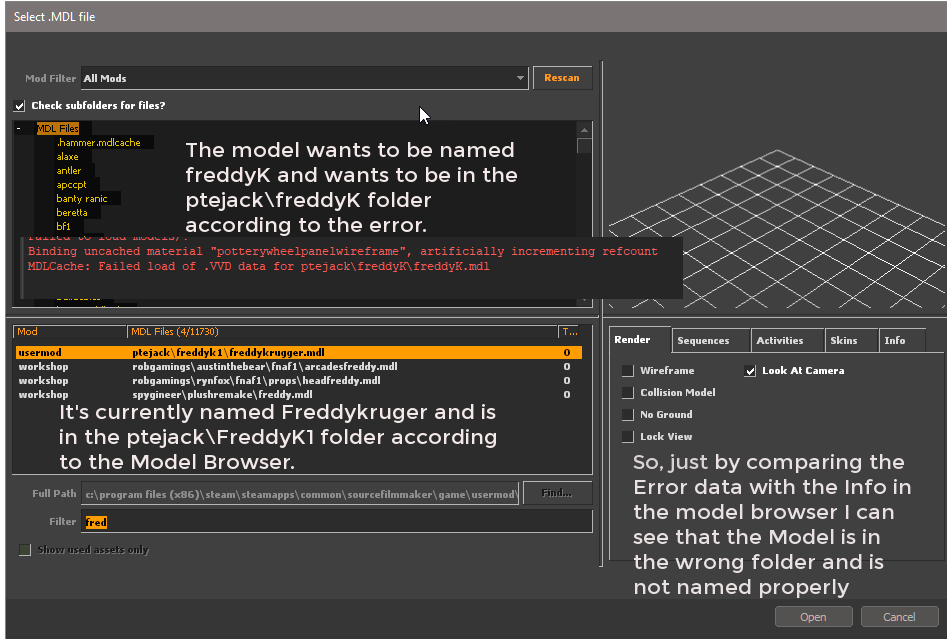
8) The errors being looked for are Errors about your model that say something like
MdlCache: Failed to load .VVD data for {path\filename}.VVD
or
MdlCache: Cannot Find .MDL for {path\filename}.mdl
Like this


This is telling you EXACTLY what is wrong.

Copy and paste the error into a Text Editing program because you have to close SFM to fix the error.

In my case, it is telling me that SFM can not find the data it requires for the model. Here's the trouble shooting step and how to determine what is wrong.

Fixing the Model
Once the cause is found it's just a matter of correcting it.

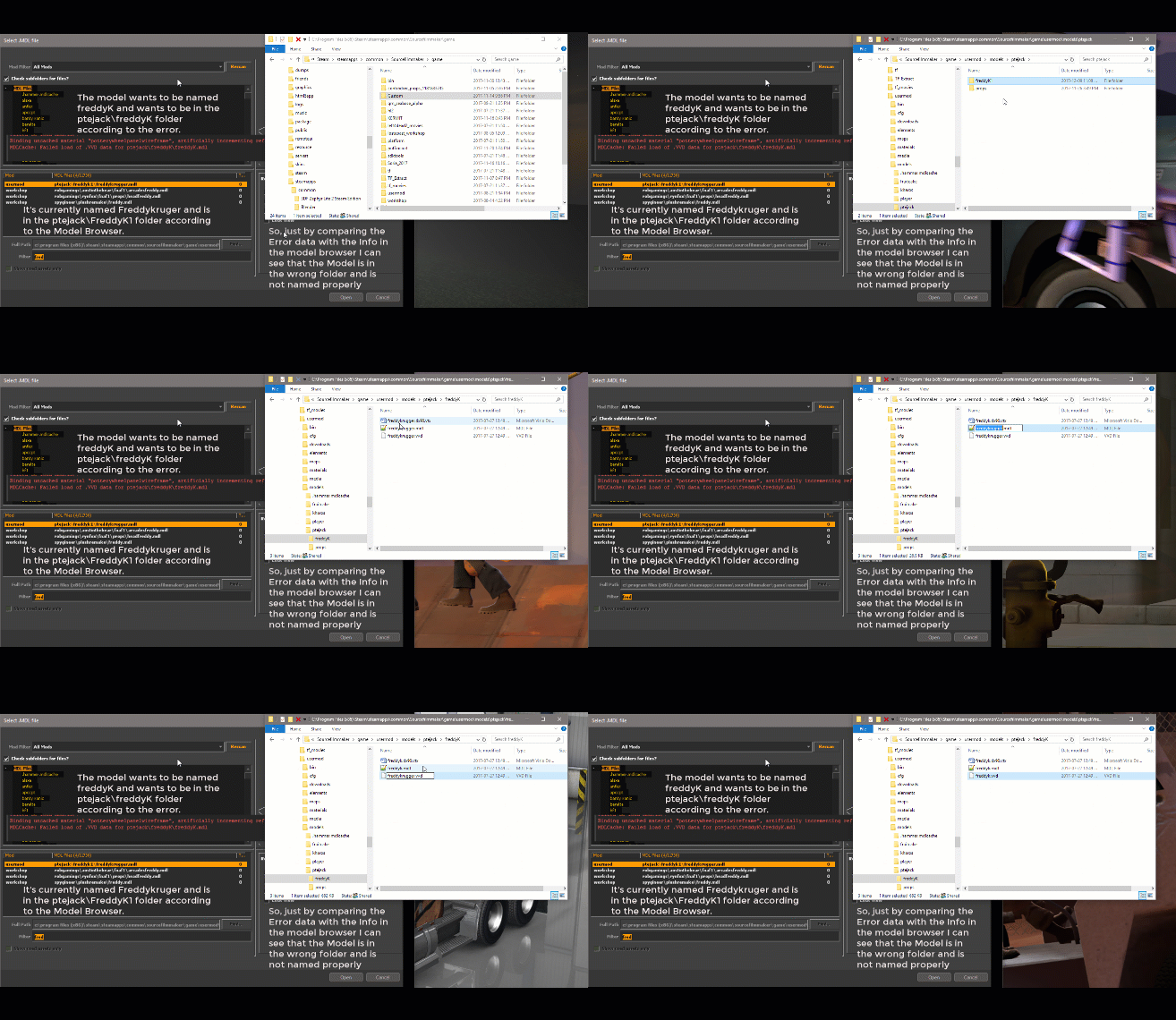
In my case, I go to the model folder the model is currently located in Move or rename the folder to where or what it needs to be, drill into the folder and change the 3 model files required by SFM (the .VVD, .MDL and the .DX90.VTX) names to what they need to be. If you have a .PHY, .SW.VTX and/or a DX80.VTX file in the folder, they should be deleted. They are not required by SFM. If you want to keep them, they need to be renamed to the proper name as well.

In my case, I just had to rename the FreddyK1 folder to FreddyK (it already existed in the ptejack folder), then rename the 3 model files from FreddyKugger to FreddyK.


Once fixed, the should be visible in both the Model Browser and in SFM.

If the model still is invisible or you don't see the errors mentioned here then you've missed them and they may buried in a lot of other stuff in the console.

To see just what the errors actually are follow this process.

1. Close and restart SFM, create a session but don't load a map.
2. Type Clear in the Console window.
3. Right Click the animationset Editor and Create a new model
4. When the File Browser opens, begin typing the name of the problem model into the search box
5. When the model appears, select it, but don't spawn it
6. Close the model browser without touching any other model and look at the console
7. You should see the can't load or find .VVD or .MDL errors you missed.
8. Use the guide to determine where the .VVD, .DX90.VTX and the .MDL belong.


Here is the Fixed model. It is now visible, but has texture problems. That's something I'll cover in my Broken Textures Guide.

https://exit.yueirsjskjl.cf/sharedfiles/filedetails/?id=1226795892


424 Comments
Mar 18 @ 7:51am 
Issue I seem to be having is that SFM fails to load the .vvd for the model, but that's all it says. Doesn't say anything about the file path, just that it failed to load the .vvd
Feb 13 @ 11:26pm 
what do i do
Feb 13 @ 11:20pm 
i click a model that has this problem it says the same name i copy and pasted it and it didnt work
Jan 22 @ 4:19pm 
So uhh every time I try open the model selector the game crashes
Jan 10 @ 6:44pm 
a super easy way i fix this is opening the .mdl with notepad. it shows the file path after "IDST1", including a few characters. it saves opening crowbar, decompiling etc. then moving it to the correct folder
Dec 8, 2025 @ 9:44am 
Thank you for the awesome guide!
Nov 2, 2025 @ 9:31am 
my problem is that everything is named correctly and is in the right place but it still dont work
Oct 6, 2025 @ 5:22pm 
I'm trying to port Doorman from Deadlock into SFM, but I got these errors::
Binding uncached material "potterywheelpanelwireframe", artificially incrementing refcount
Model file 'dannythesniper\dts_doorman\doorman.mdl' and associated vtx files are out of date
"materials/models/dts_doorman/doorman_head.vtf": can't be found on disk
"materials/models/dts_doorman/doorman_body.vtf": can't be found on disk
dannythesniper\dts_doorman\doorman.mdl : material "models/dannythesniper/dts_doorman/doorman_hair" not found.
dannythesniper\dts_doorman\doorman.mdl : material "models/dannythesniper/dts_doorman/doorman_keyglow" not found.
Material models/dannythesniper/dts_doorman/doorman_body does not support vertex format used by the mesh (maybe missing fields or mismatched vertex compression?), mesh will not be rendered. Grab a programmer!
Aug 15, 2025 @ 4:14pm 
heres a tutorial series for those (like me) who dont know what the ♥♥♥♥ OP meant by that

https://www.youtube.com/watch?v=0yqibB3qRdQ
Pte Jack  [author]
Aug 7, 2025 @ 3:34pm 
I've found that the Failed to load VVD data error usually indicates a broken model. (Could be an old day hexed type model to get it to work in a different source game)

The best way to fix that is to export the MDL file using Crowbar,
bringing the SMD into Blender (you don't have to make any changes),
exporting it back out and
recompiling the model using SFM settings.